Step 1: Open the Page Containing the Table You Want to Update
- In the admin menu, select Pages.
- Choose All Pages.
- Select the page you want to edit, such as Home, About, or Locations.
Step 2: Locate the Table Block
- Scroll through the content until you see the table.
- Click anywhere inside the table.
- When selected, a toolbar will appear above it.
Step 3: Make Your Changes
You can now edit the table directly:
- Click inside any cell to update text.
- Press Enter to add new lines within a cell.
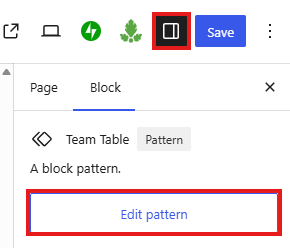
To expand the toolbar, click the Settings button from the top right menu, and click Edit pattern
- Use the toolbar options to:
- Align text
- Format content
- Add/remove links
To add a row or column:
- Click the Edit Table icon in the toolbar.
- Choose Add row before or after, or Add column before or after.
Step 4: Save Your Changes
- Click Update or Publish in the top right.
- Preview the page to confirm everything looks correct.